Is your Android phone starting to feel like a relic from the past? In 2026, as mobile applications become more sophisticated—integrating real-time AI, augmented reality, and high-definition graphics—even relatively new smartphones can suffer from performance lags. A sluggish phone isn’t just frustrating; it hampers productivity and ruins the user experience.
The good news is that you don’t always need a hardware upgrade to get that “new phone” feeling back. By following this deep-dive guide, you will learn the most effective, professional-grade methods to optimize your Android device. Here are 5 comprehensive steps to transform your slow Android phone into a high-performance machine.
1. Deep Storage Audit: Beyond Just “Deleting Photos”
Storage management is the foundation of smartphone speed. When your internal storage (NAND flash) exceeds 80% capacity, its write speed drops significantly, causing the entire OS to stutter.
- The “Zero-Use” Purge: Go through your app drawer. In 2026, many apps have “Lite” versions or Progressive Web Apps (PWAs) that run in a browser. Delete apps you haven’t opened in the last 30 days.
- Targeting Large Media Files: Don’t just delete; offload. Use Google Photos or cloud services to move 4K videos and high-res images off your local storage.
- Clear System & App Cache: Go to Settings > Apps > See All Apps. Identify high-storage users like Facebook, TikTok, or Telegram. Tap on Storage & Cache and select Clear Cache.
- Note: Avoid “Clear Data” unless you want to log in again and reset the app’s settings.
- Hidden Downloads: Use the “Files by Google” app to find hidden duplicate files and old (.apk) installers that are wasting space.
2. Master the Background Environment (RAM Optimization)
Random Access Memory (RAM) is where your phone “thinks.” If too many apps are fighting for a piece of the RAM, your phone will feel slow because the CPU has to constantly swap data in and out.
- Disable Bloatware: Many manufacturers include pre-installed apps that can’t be uninstalled. Go to Settings > Apps, select these apps, and hit “Disable.” This prevents them from ever launching or consuming background resources.
- The Power of a Simple Restart: In 2026, we often leave our phones on for weeks. A weekly restart flushes the RAM and kills “zombie” processes—apps that have crashed but are still eating up CPU cycles.
- Restrict Background Data: Go to Settings > Data Usage. For apps that don’t need real-time updates (like offline games), toggle off “Background Data.” This saves both RAM and battery life.
3. Unlock Developer Options for UI Fluidity
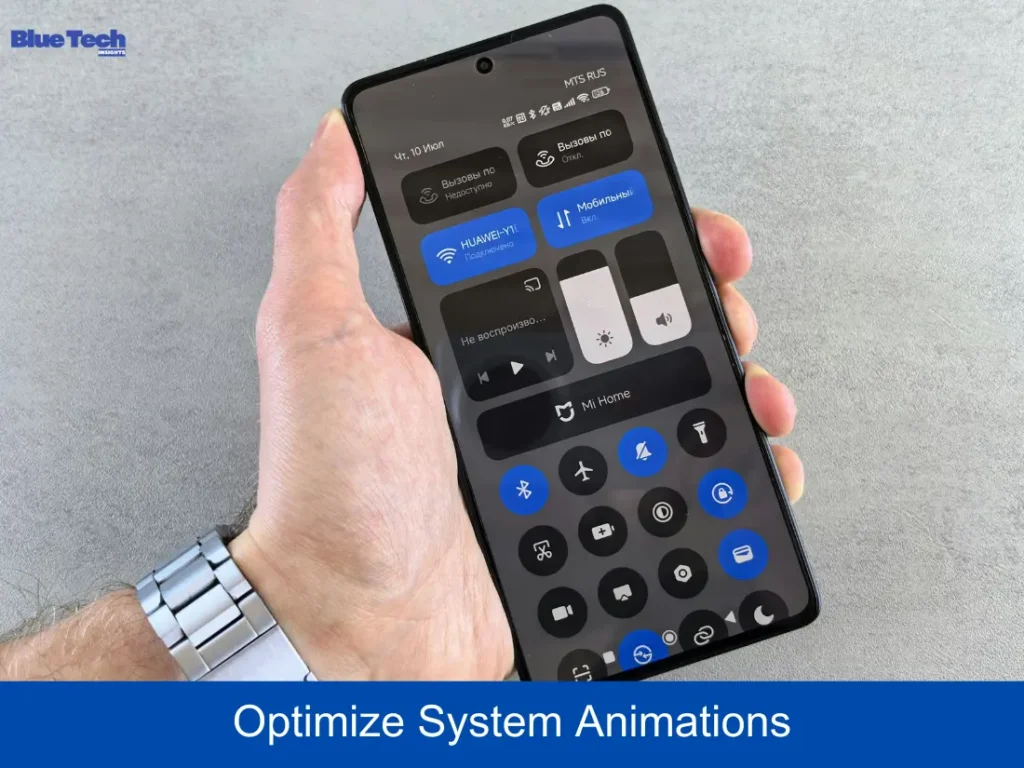
This is a “pro-tip” that can make your phone feel twice as fast instantly. By shortening the time it takes for windows to open and close, the user interface (UI) becomes significantly snappier.
- How to Enable: Go to Settings > About Phone. Scroll down to “Build Number” and tap it 7 times until you see the message “You are now a developer!”
- The Animation Trick: Go to Settings > System > Developer Options. Scroll down to the “Drawing” section and find these three settings:
- Window animation scale
- Transition animation scale
- Animator duration scale
- The Fix: Change each of these from 1x to 0.5x. If you want a “lightning-fast” feel, you can turn them Off entirely. Your phone will no longer “slide” windows open; they will just appear instantly.
4. Advanced System Maintenance: Updates and Battery Health
Operating system updates in 2026 are not just for security; they include the latest drivers for your phone’s processor (NPU and GPU).
- Software Updates: Go to Settings > System Update. Ensure you are on the latest security patch. Developers often optimize app performance based on the latest Android kernels.
- Google Play System Updates: Often overlooked, this is found in Settings > Security. It updates core Google services that manage how apps interact with each other.
- Battery Throttling: If your battery is old or “Overheating,” Android will intentionally slow down the CPU (thermal throttling) to prevent damage. Check your battery health in Settings. If your phone is hot to the touch, let it cool down before performing heavy tasks.
5. The “Fresh Start” Strategy (Factory Data Reset)
If you have tried everything and your phone still feels like it’s stuck in 2020, a Factory Data Reset is the “nuclear option” that works 99% of the time. Over years of use, system files can become corrupted, and deep-seated “junk” can accumulate in ways a simple cleanup can’t fix.
- The Preparation: Back up all your data to the Cloud or a PC (refer to our Cloud Backup Guide for help).
- The Execution: Go to Settings > System > Reset Options > Erase all data (factory reset).
- Post-Reset Tip: When setting up your phone again, don’t just restore every single app from your old backup. Install apps one by one as you need them. This ensures you don’t bring the old “clutter” back to your clean system.
Conclusion
Speeding up your Android device in 2026 is a blend of smart housekeeping and technical fine-tuning. By auditing your storage, managing background apps, and optimizing your UI animations, you can extend the life of your smartphone by several years. Technology moves fast, but with these five steps, your phone can keep up.
Disclaimer: The steps provided in this guide, particularly those in “Developer Options” and “Factory Data Reset,” involve advanced system modifications. While these are standard optimization practices, Bluebook.site is not responsible for any accidental data loss or software errors. Users are strongly advised to back up all critical information before proceeding with a factory reset or deep system changes.
About the Author