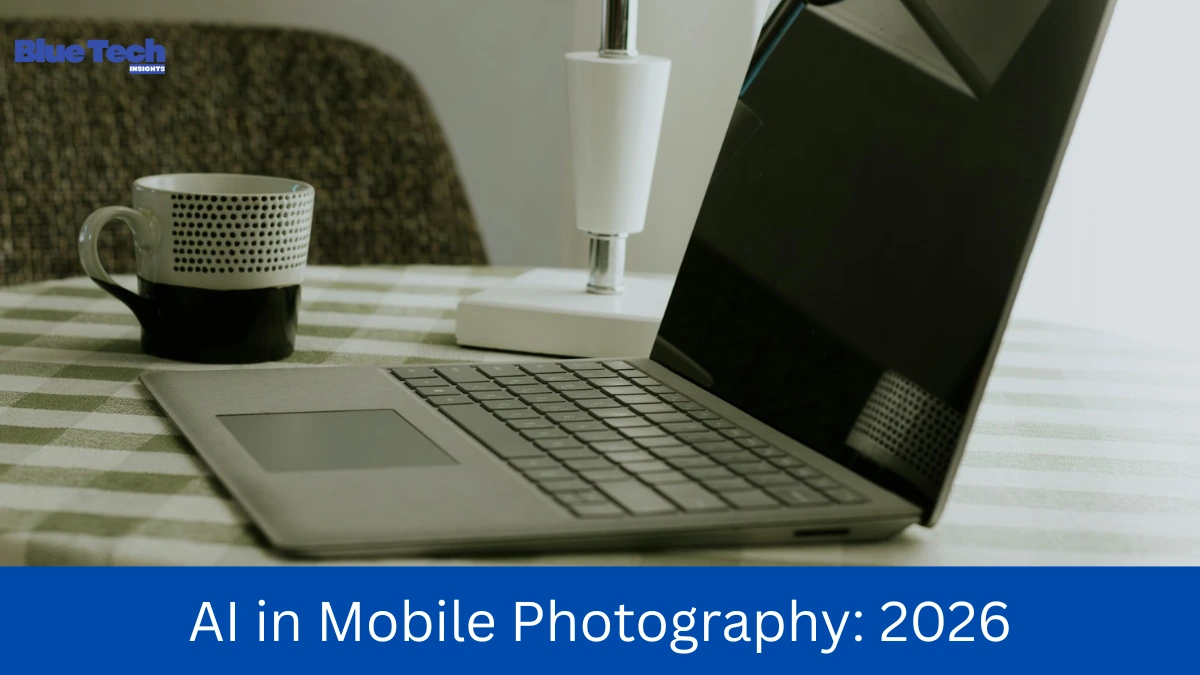
In 2026, laptops have become more compact and powerful than ever, but they are still vulnerable to the same old enemies: dust, grime, and oils. A dirty laptop isn’t just an eyesore; it can lead to overheating, sticky keys, and even permanent hardware failure. Dust buildup inside the cooling fans can throttle your processor’s performance, making your expensive machine feel slow and sluggish.
Proper maintenance is key to extending the lifespan of your device. In this comprehensive guide, we will walk you through the safest and most effective ways to clean every part of your laptop, from the delicate screen to the internal cooling vents.
1. Preparation: What You Will Need
Before you start, it is crucial to use the right tools. Using the wrong chemicals or materials (like paper towels or window cleaner) can permanently damage your laptop’s protective coatings.
- Microfiber Cloths: The gold standard for cleaning screens and surfaces without scratching.
- 70% Isopropyl Alcohol: Effective for disinfecting and removing oils. (Do not use higher than 70% on screens).
- Compressed Air Duster: Essential for blowing dust out of tight spaces like keyboards and vents.
- Soft-bristled Brush: A clean makeup brush or a dedicated tech brush for loose debris.
- Distilled Water: To be mixed with alcohol if you need a milder solution.
Important Note: Always power off your laptop, unplug the charger, and remove the battery (if possible) before cleaning.
2. Cleaning the Keyboard and Touchpad
The keyboard is often the filthiest part of a laptop, harboring more bacteria than a toilet seat.
- Remove Loose Debris: Turn the laptop upside down and give it a gentle shake. Use a soft brush to sweep between the keys.
- Compressed Air: Hold the laptop at a 75-degree angle and spray the compressed air in a zigzag motion across the keys. This forces dust and crumbs out from under the keycaps.
- Disinfecting: Slightly dampen a microfiber cloth with 70% isopropyl alcohol. Wipe the surface of the keys and the touchpad. Never spray liquid directly onto the keyboard, as it can seep into the motherboard.
3. Reviving the Display (The Screen)
Laptop screens in 2026 often feature advanced anti-reflective and oleophobic coatings. Harsh chemicals like ammonia or bleach will strip these away.
- Dry Wipe First: Use a clean, dry microfiber cloth to wipe away dust in a circular motion. Applying light pressure is usually enough for fingerprints.
- For Stubborn Smudges: Dampen the cloth with a 50/50 mix of distilled water and isopropyl alcohol. Wipe gently from the center outward.
- The Golden Rule: Never use paper towels or tissues. They are made of wood pulp and can create microscopic scratches on the screen.
4. Clearing the Vents and Cooling System
Overheating is the number one killer of laptop performance. If your fans are loud or the bottom of the laptop feels hot, your vents are likely clogged.
- Locate the Vents: Find the air intake and exhaust vents (usually on the bottom or sides).
- Short Bursts of Air: Use compressed air to blow out the dust. Use short, controlled bursts. Pro Tip: Stick a thin toothpick gently into the vent to hold the fan blades in place while spraying; spinning the fan too fast with compressed air can generate electricity and damage the board.
- External Ports: Use the air duster to clean USB-C ports, HDMI slots, and headphone jacks where pocket lint often accumulates.
5. Cleaning the Chassis (The Body)
Whether your laptop is made of aluminum, magnesium alloy, or high-grade plastic, the exterior needs care too.
- Removing Scuffs: Use a microfiber cloth with a bit of alcohol to wipe down the lid and the bottom.
- Sticker Residue: If you’ve removed old stickers, use a tiny amount of high-grade alcohol to dissolve the adhesive.
- Polishing: For premium metal laptops, a dry microfiber cloth buffing will bring back the original shine.
6. Comparison: Cleaning Dos and Don’ts
| Component | DO | DON’T |
| Screen | Use Microfiber & Distilled Water | Use Window Cleaner or Tissues |
| Keyboard | Use Compressed Air & 70% Alcohol | Use Vacuum Cleaners (Static Risk) |
| Vents | Use Short Bursts of Air | Poke Sharp Metal Objects Inside |
| Ports | Use Soft Brushes | Use Damp Cotton Swabs |
| General | Power Off & Unplug | Clean While Powered On |
Conclusion
A clean laptop is a fast laptop. By spending 15 minutes every month on this cleaning routine, you can prevent thermal throttling, hardware degradation, and keep your device looking brand new. Maintenance in 2026 is about being proactive—take care of your tech, and it will take care of your work and entertainment for years to come.
Disclaimer: This guide provides general cleaning instructions suitable for most modern laptops as of 2026. However, specific laptop models (especially those with specialized displays or water-resistant coatings) may have unique requirements. Always refer to your manufacturer’s official manual before applying any liquids or compressed air. Bluebook.site is not responsible for any hardware damage resulting from improper cleaning techniques or the use of incorrect cleaning agents.
About the Author